What is it?
HomeGate is a service that runs on a SSLIP server and implements the cyrious_cloud_connector on the local SSLIP computer. When enabled in Control, HomeGate establishes the cyrious_cloud_connector link which allows Control Cloud Apps to function. It is best explained with this simplified diagram:

HomeGate “dial out” to establish a connection to Cyrious Cloud (CloudSpace). After authenticating using a public-private encryption key (for which only you have the private key), the connection establishes a secure SSH tunnel that then allows Cyrious' CloudSpace to access your local information to provide approved services.
HomeGate does not host the document_management_api, that is handled by the Cyrious Document Access Service.
Status Monitoring
HomeGate has a very useful web front end that is accessible at http://localhost:12555 on machines it is installed on. It is NOT possible to get to this webpage via other machines, only the machine that the HomeGate is running on. The web site has two pages: the Status page and the Configuration page. The web site will only be available when the service is running.
Home Page
The home page is the primary monitoring page for HomeGate.
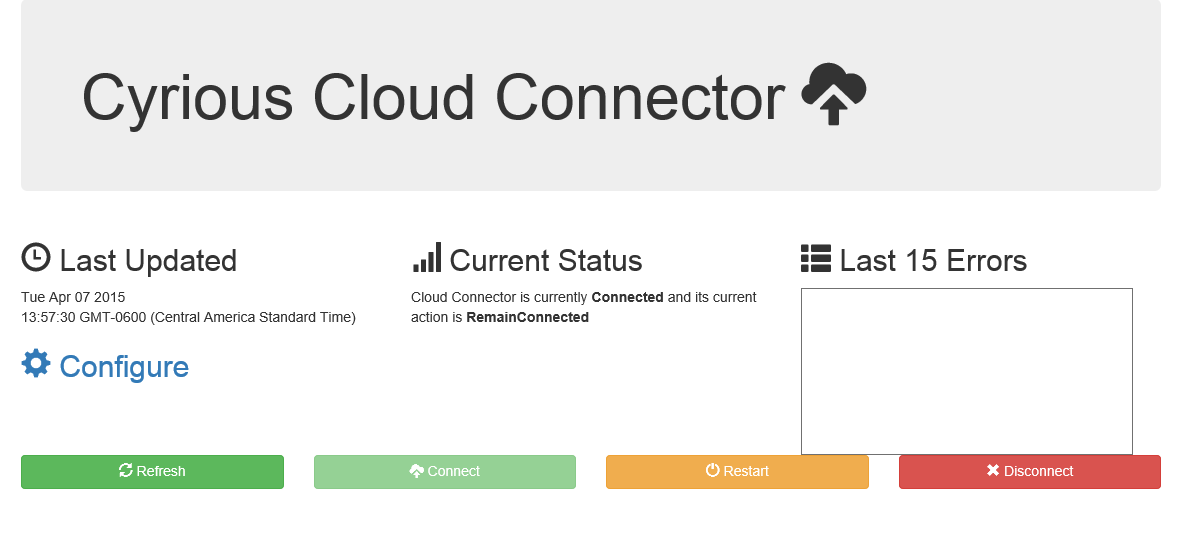 | Actions available on this page are: * Refresh. This refreshes the monitoring page with the latest information. Note: The status page does not refresh automatically. * Connect. This connects the HomeGate to the Cyrious CloudSpace. This option is only available is the service is disconnected. * Restart. This disconnected and reconnects the HomeGate. This will interrupt any existing CloudApp connection, but allow new connections to take place. * Disconnect. This disconnects the HomeGate from the Cyrious CloudSpace. » Warning: Disconnecting the HomeGate will close the Cyrious Cloud Connected and prevent any CloudApps from running. Any CloudApps already running will be interrupted. |
Configuration Page
The configuration page give a read-only listing of the configuration information.
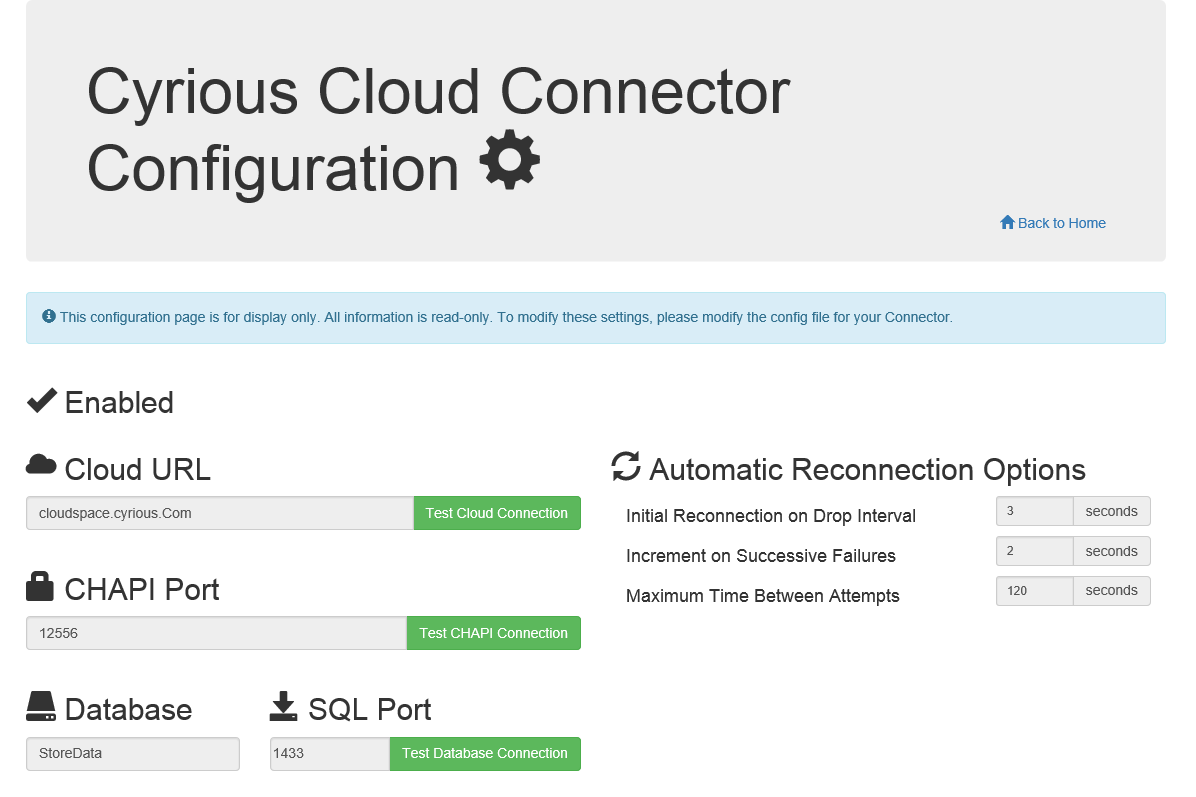 |
- Enabled. This indicates if the connection is enabled in Control. If the cyrious_cloud_connector is not enabled in Control, it will not attempt to establish a connection with Cyrious CloudSpace.
- Cloud URL, The address HomeGate dials out to connect to the Cyrious' CloudSpace.
- CHAPI Port. The port the HomeGate uses to connect to the local CHAPI.
- Database. The name of the local SQL database HomeGate is connecting to.
- SQL Port. The port for the local SQL database HomeGate is connecting to. ||
Normal Operation
These steps illustrate normal operation of the HomeGate
- HomeGate is installed
- When the cyrious_cloud_connector module is available, a “cyrious_cloud_connector Options” frame is accessible in Control System Setup
- A Control user can enable CCubed.
- On save of the CCubed options, if the option is enabled, the HomeGate service will be started.
- On startup of the service, HomeGate will start the status website
- If configured to connect (defaults to tru) HomeGate will attempt to contact CHAPI
- HomeGate requires a 5.6 CHAPI with Public/Private Keypairs set in order to function correctly
- After contacting CHAPI, HomeGate will attempt to contact the SQL Database
- This will occur on port 1433 only on versions prior to 1.3.2.
- Versions of HomeGate 1.3.2 and above will use the SQL port that Chapi has assigned.
- After gathering information from both CHAPI and SQL, HomeGate will attempt to connect to Cloudspace
- If successful, HomeGate will maintain the connection to Cloudspace
- If unsuccessful, HomeGate will retry with delays as specified in the configuration
- When manually disconnected, HomeGate will enter 'hibernate' mode and check every 15 minutes to see if it has been turned back on.
- While in 'hibernate' the status website will still be available
Installation
HomeGate requires four files to properly install:
- vcredist_x86_110.exe
- vcredist_x86_120.exe
- NDP451-KB2859818-Web.exe
- HomeGate.Installer.msi.
The first two are C++ runtimes, and the third one is the .NET 4.5.1 runtime.
If any of the runtime installations fail to install, HomeGate will not function correctly.
HomeGate.Installer.msi will install all files and register the service, but does not set the service to automatically start.
NOTE: In order for HomeGate to function properly, all related files will need to be located on the same computer.
- These include CHAPI, HomeGate, SSLIP, Control, and the SQL Server instance where your database is located.
Troubleshooting
Troubleshooting tools are built into HomeGate! The easiest way to diagnose most problems (other than installation related problems) is to open the HomeGate monitoring page at http://localhost:12555.
Step 1 - Check if HomeGate is Installed, Enabled, and Running
- Go into your Services application and make sure HomeGate is in the list
- Go into Control and make sure the Cloud Connector is Enabled

- Check back in Services to ensure that HomeGate is now Started
Note: If HomeGate is installed twice - One of them will be HomeGate verison 1.0.0. When you uninstall the first of two it will remove all the HomeGate files. Then when you attempt to uninstall the 2nd one, it will throw an error stating it cannot find the files to remove. At this point, run the HomeGate installer, the latest one, this will install the HomeGate files. You can then uninstall the other one. Afterward reinstall HomeGate again to install the correct version.
Step 2 - Check if HomeGate is Configured Properly
On the configuration page, you can test the connections to:
- Cyrious CloudSpace
- CHAPI
- SQL
If any of these tests fail, the cyrious_cloud_connector will not be able to establish a connection with Cloud Apps.
Check to ensure ports 12345 and 6022 are open through the firewall. May need the customer's IT staff to check their hardware firewalls as well (if installed). To test if a port is open, use the following URL:
Change the port number to the port you want to test. If the webpage comes up on the server, the port is open.
Step 3 - Restart the Service
Logging
HomeGate will log to two different locations:
- logFile.txt in Cyrious\HomeGate folder
- The Windows event log
These logs are useful for troubleshooting.
Other Notes
- No HomeGate service exists: Ensure that HomeGate.Installer.msi and the runtime installers (the two C++ and the .NET) are in the /Install folder of the Control installation files.
- Two HomeGates installed: Uninstall the older version, and reinstall/repair the newer version.
- Error getting options from Control database: Cannot open database requested by the login: Ensure your HomeGate service is installed on the same machine as your SQL database.
- HomeGate service won't start: Ensure that .NET 4.5.1 and VC++ 2013 runtimes are installed on the machine. Use the HomeGateSetup.exe to install these manually if not.
- HomeGate status website unavailable: Ensure you are opening a browser on the same machine as the service. The website is only open to browsers on the same machine.
- HomeGate service in ConfigurationFailure status: Ensure the app.config or website has the correct CHAPI Port and Database name and SQL Port. This can only be modified by manually modifying the app.config in the Cyrious\HomeGate folder.
- HomeGate service stuck in Connecting action: Refer to the last 15 errors section in the website or the errors in the Windows log.
- HomeGate error log has a “side by side” error: This exotic error can be fixed by downloading and installing this alternate runtime. See this stack overflow answer for more information.
- HomeGate Password Validation Failed: The password does not meet the requirements of the password filter DLL. homegate_-_password_validation_failed