Table of Contents
Overview
This article covers how to configure Control to allow online payments via Freedompay.
Requirements
- You must have an account with Capital Q and FreedomPay. Everyone will need to do this!Call or email our contact at Capital Q letting him know you're interested in using the online payment feature in Control. Even if you're already using the integrated credit card processing in Control, you'll still need to complete this step.
- Online payments were introduced in the 05.70.1623.0601 version of Control so verify you are using that version or a newer version before proceeding (Help > About Control > Version).
- An active technical support contract is required.
- The online payments feature is currently only available to US Control users. We are working to expand this feature to Canadian Control users in the near future.
Setup
Before you can begin to setup online payments, you must have your Terminal ID and Store ID from FreedomPay. If you haven't done this already, please contact Ed Moore using the contact information provided in Step #1 of the Requirements section above.
There are 2 steps required to setup Control's online payment feature.
- . This allows web applications to communicate with your Control database. This is an easy one and will only take a few seconds:
- Open Control and select Setup > System Setup
- Navigate to the Cyrious Cloud Connector option
If you are using version 5.7, scroll to the very bottom and select the Cyrious Cloud Connector option
If you are using version 5.75, the Cyrious Cloud Connector option is at the top under the Document Manager option.
- Edit and check the Enable Cyrious Cloud Connector option if it isn't checked. If you're already using other cloud apps, this has already been done.
- Enter your Terminal ID and Store ID that was given to you from FreedomPay into Control. To do this, follow the steps below:
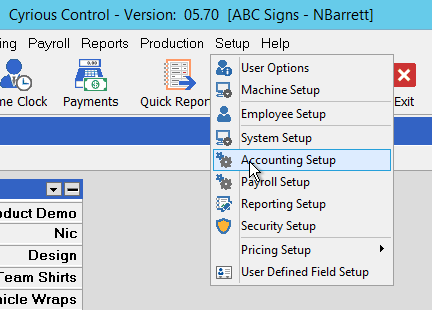
- Open Control and select Setup > Accounting Setup
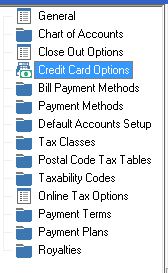
- On the left hand side, select the Credit Card Options
- You should see a screen similar to the image below.
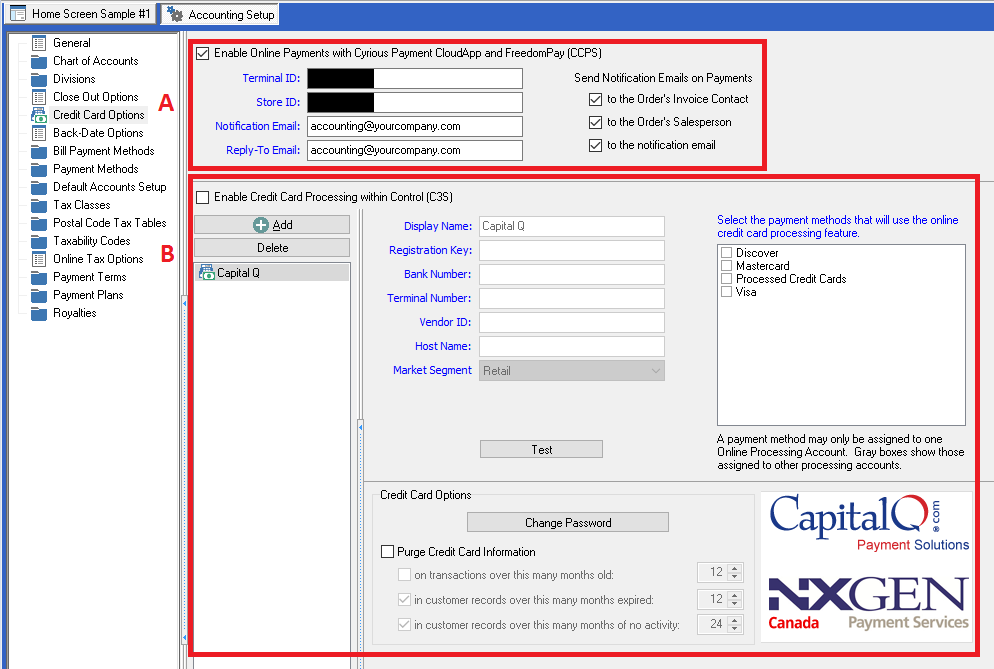
In Section A:
- Check the option to Enable Online Payments with Cyrious Payment CloudApp and FreedomPay (CCPS). Remember, blue fields are required fields!!
- Enter your Terminal ID that you'll get from FreedomPay. Required field
- Enter your Store ID that you'll get from FreedomPay. Required field
- Enter the email address of the person that should be notified when payments fail or are not posted to Control. Usually this would be the accounting department, the store owner, or maybe a CSR. Required field
- Enter a Reply-To Email address so that automatic email notifications that are replied to aren't missed. Required field
In Section B:
- This section is only used for credit card processing that's done within Control, which is different from online payments. You can completely ignore this section.
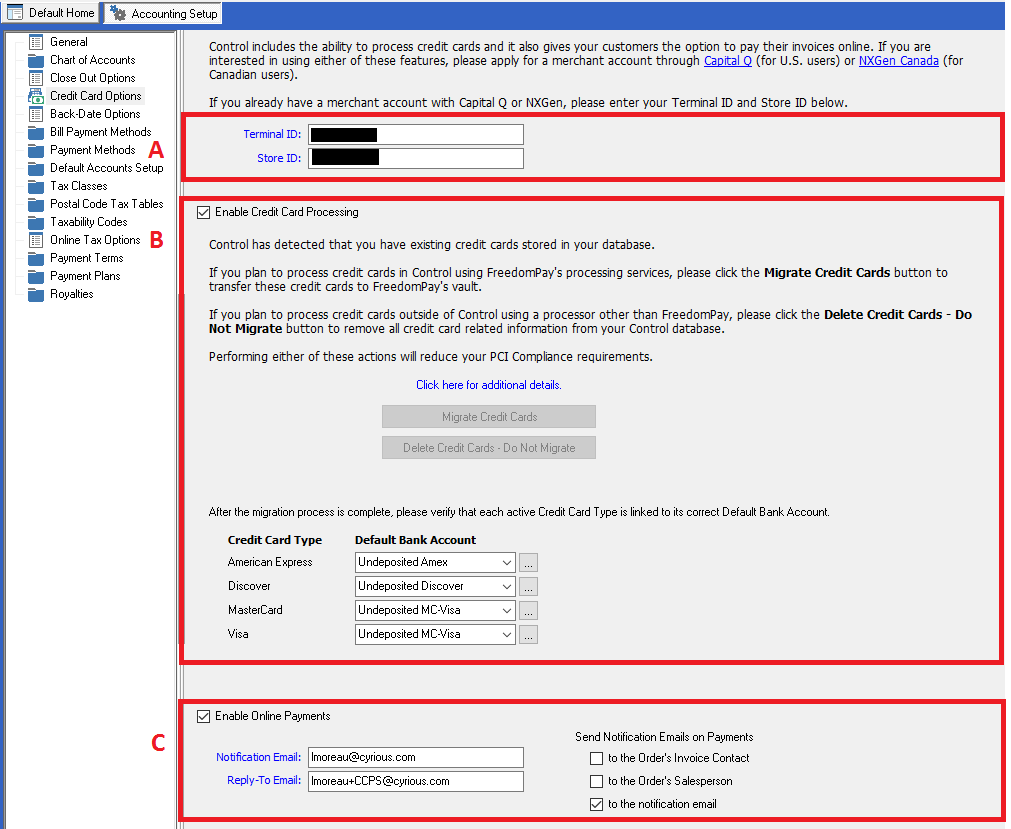
In Section A:
- Enter your Terminal ID that you'll get from FreedomPay. Required field
- Enter your Store ID that you'll get from FreedomPay. Required field
In Section B:
- This section is only used for credit card processing that's done within Control, which is different from online payments. You can completely ignore this section.
In Section C:
- Check the option to Enable Online Payments with Cyrious Payment CloudApp and FreedomPay (CCPS).
- Enter the email address of the person that should be notified when payments fail or are not posted to Control. Usually this would be the accounting department, the store owner, or maybe a CSR. Required field
- Enter a Reply-To Email address so that automatic email notifications that are replied to aren't missed. Required field
Next Step: Proceed to the how-to_send_invoices_that_can_be_paid_online wiki
Source
Contributor: Cyrious Software
Date: 11/30/2016
Version: Control 05.75