Table of Contents
Description
This page describes the steps to connect to a MySQL database. The particular example connects to PressWise so that data could be extracted for insertion into Control, but the general steps should work for any MySQL database.
Note: Connecting to MySQL or other databases is not standard function of Cyrious and is not covered by standard support contracts. Assistance debugging or setting up this connection can be offered under the Supplemental Support Agreement.
Steps
General Links
For an additional walk through, see http://www.easysoft.com/support/kb/kb01095.html
- The JDBC driver must be installed on the MySQL server for ODBC connections to work. This process assumes this driver is already in place. If not, it should be installed by the IT team responsible for the MySQL database.
- Determine the version of SQL you are running locally. Open SQL Management Console and run:
- SELECT SERVERPROPERTY('Edition')
- If the output says (64 bit) in the name, it is 64 bit. Otherwise it is 32 bit.
- Install the ODBC Connector for MySQL.
- The version installed match the version (32 or 64 bit) of SQL you are using.
- There is no problem installing both the 32 and 64 bit, but the correct one must be used in the following steps.
Create ODBC Connection.
You must the ODBC configuration that matches the version (32 or 64 bit) of SQL you are using or you will get an “Architecture Mismatch” error when you try to use it.
- Click the windows button and type ODBC.
- Choose the setup corresponding the the version of SQL you are using (32 or 64 bit).
- Click on the System DSN tab. A User DSN will fail, since SQL is running as a different user.
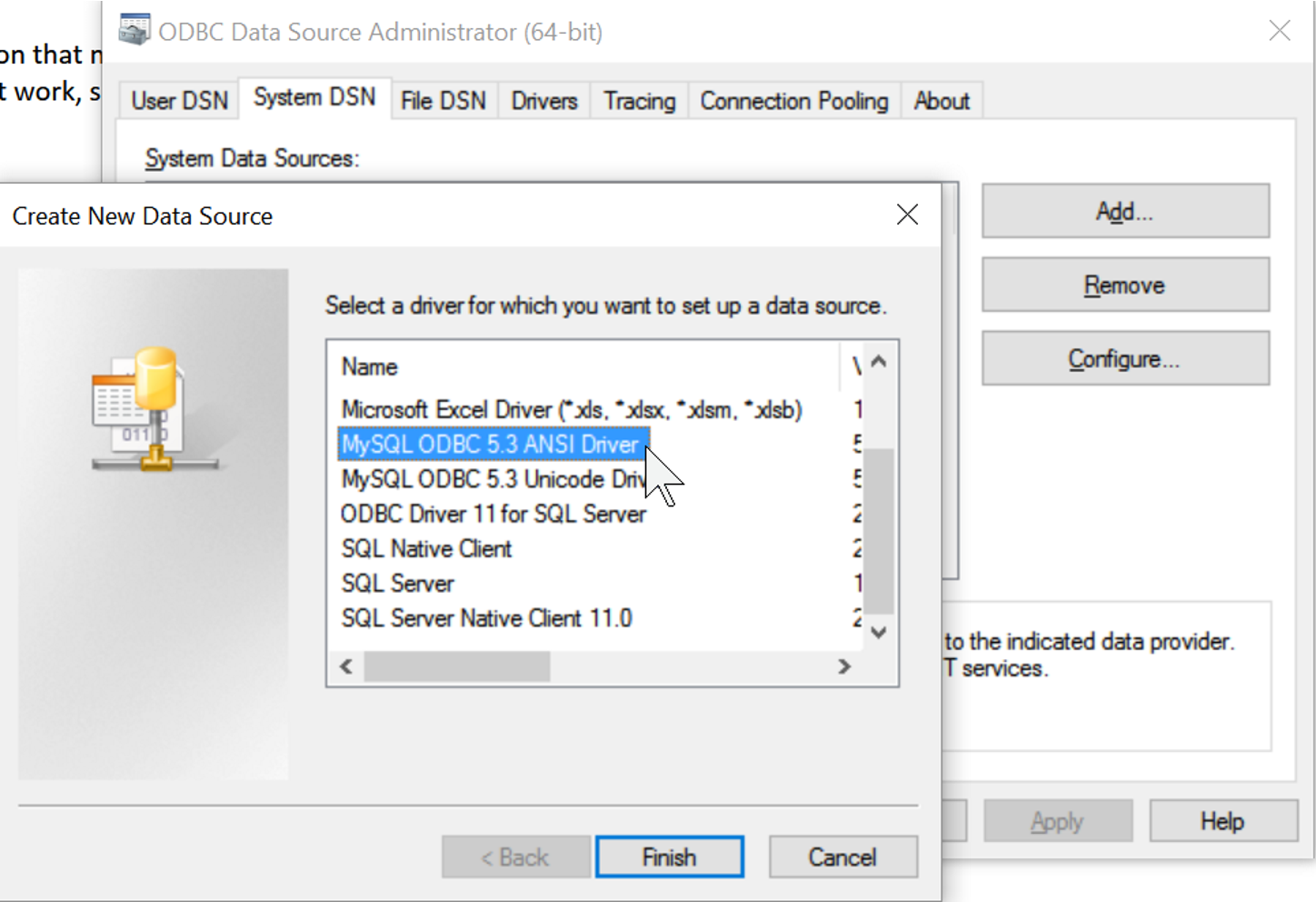
- Click on Add … to create a new connection
- Choose MySQL ODBC 5.x ANSI Driver as the driver and click Finish. If you don't see that choice, you still need to install the MySQL drivers. (See above)
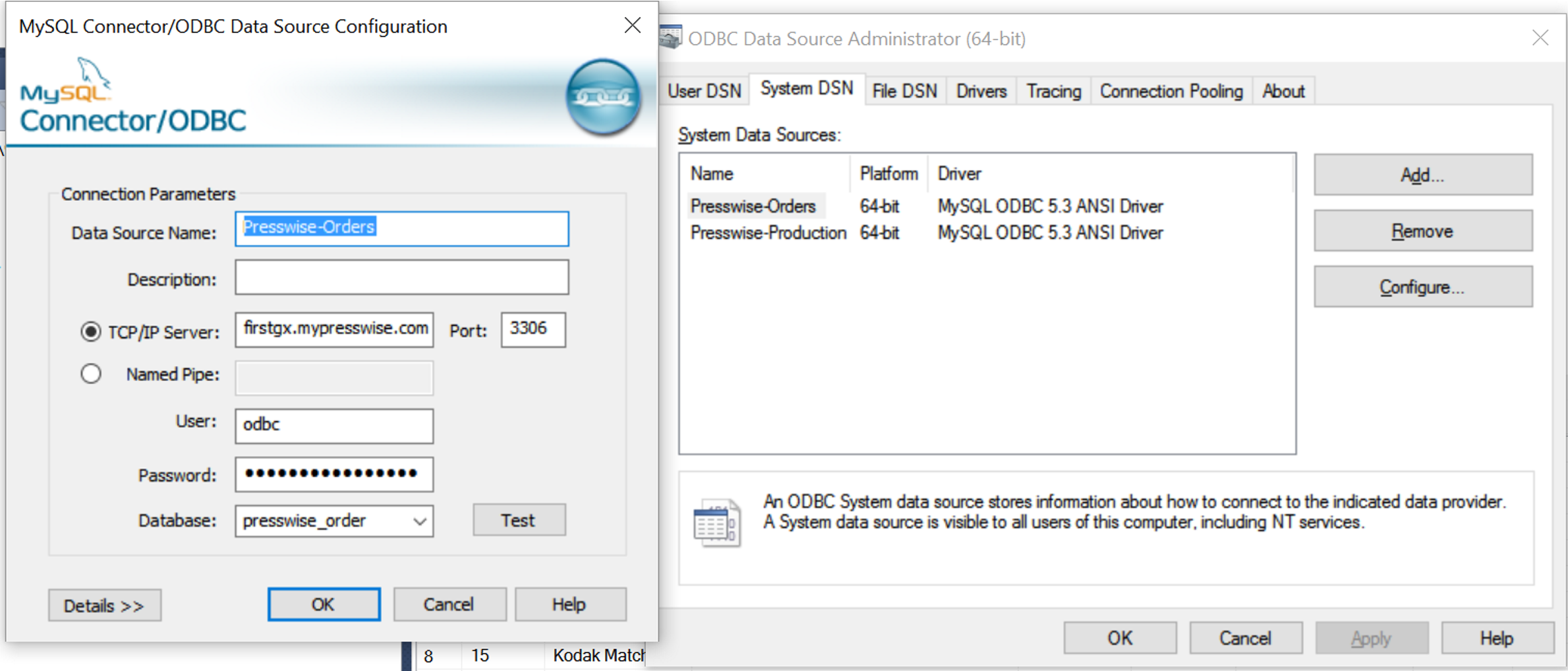
- Enter these values:
- Data Source Name: Presswise-Orders
- TCP/IP Server: (use supplied URL)
- Port: 3306 (leave default)
- User: (use supplied user name)
- Password: (use supplied password)
- Database: presswise_order
- Test Connection. Click OK if successful. Correct values if not.
- Repeat the process for the production connection
- Enter these values:
- Data Source Name: Presswise-Production
- TCP/IP Server: (use supplied URL)
- Port: 3306 (leave default)
- User: (use supplied user name)
- Password: (use supplied password)
- Database: presswise_production
Set up Linked Server in SQL
- Open SQL Server Management Studio (SSMS) and connect to the SQL database engine with Control.
- Configure the MSDASQL provider with optios that MySQL supports.
- Expand Server Objects | Linked Servers | Providers
- Right Click n MSDASQL and choose properties
- Check these boxes (if they are not already selected)
- Nested Queries
- Level Zero Only
- Allow Inprocess
- Supports 'Like' Operator
- Click OK.
- Set up linked server connections for the PW_ORDERS Connection
- Right-click on Linked Servers under Server Objects
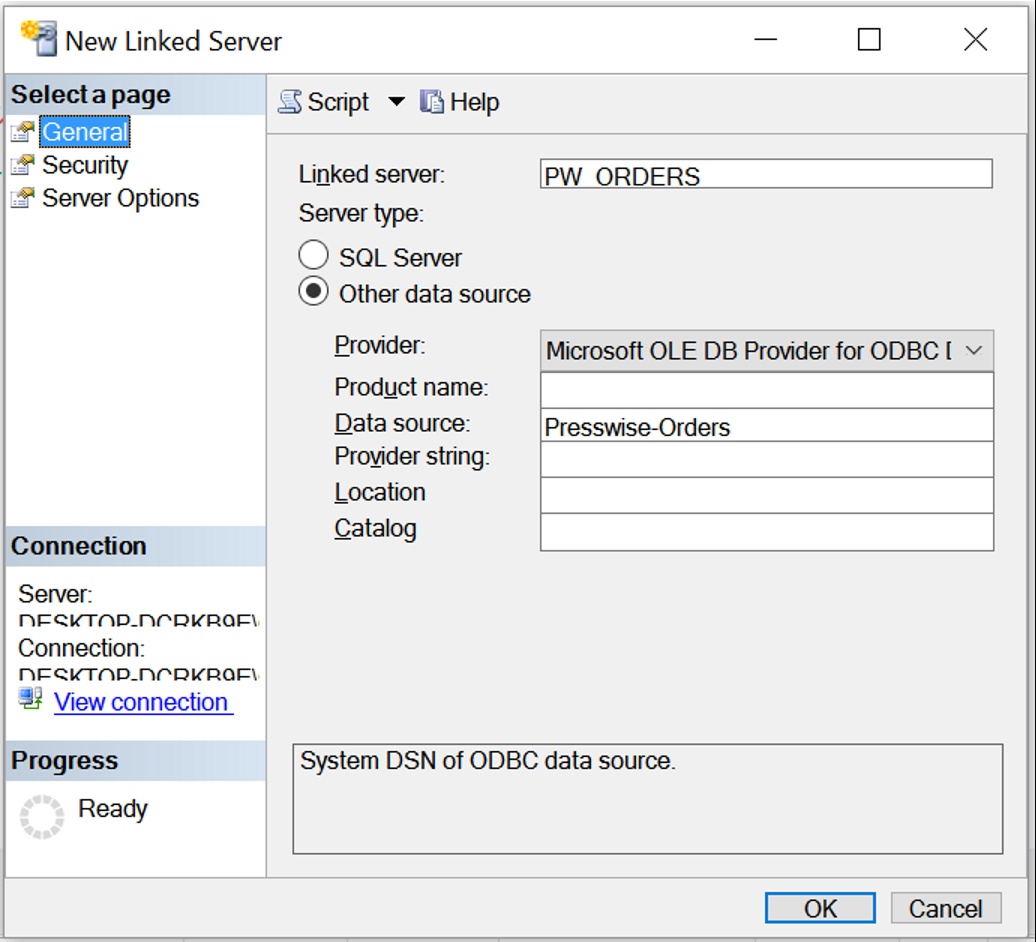
- Choose New Linked Server …
- Enter PW_Orders as the Linked Server
- Select Microsoft OLE DB Provider for ODBC Driver for the provider
- Enter Presswise-Orders (the name of the DSN you created above) in the Datasource
- Click on the Security page.
- Select Be made using this security context to set up the default user and password.
- Enter the MySql user name for the Remote Login
- Enter the provided password
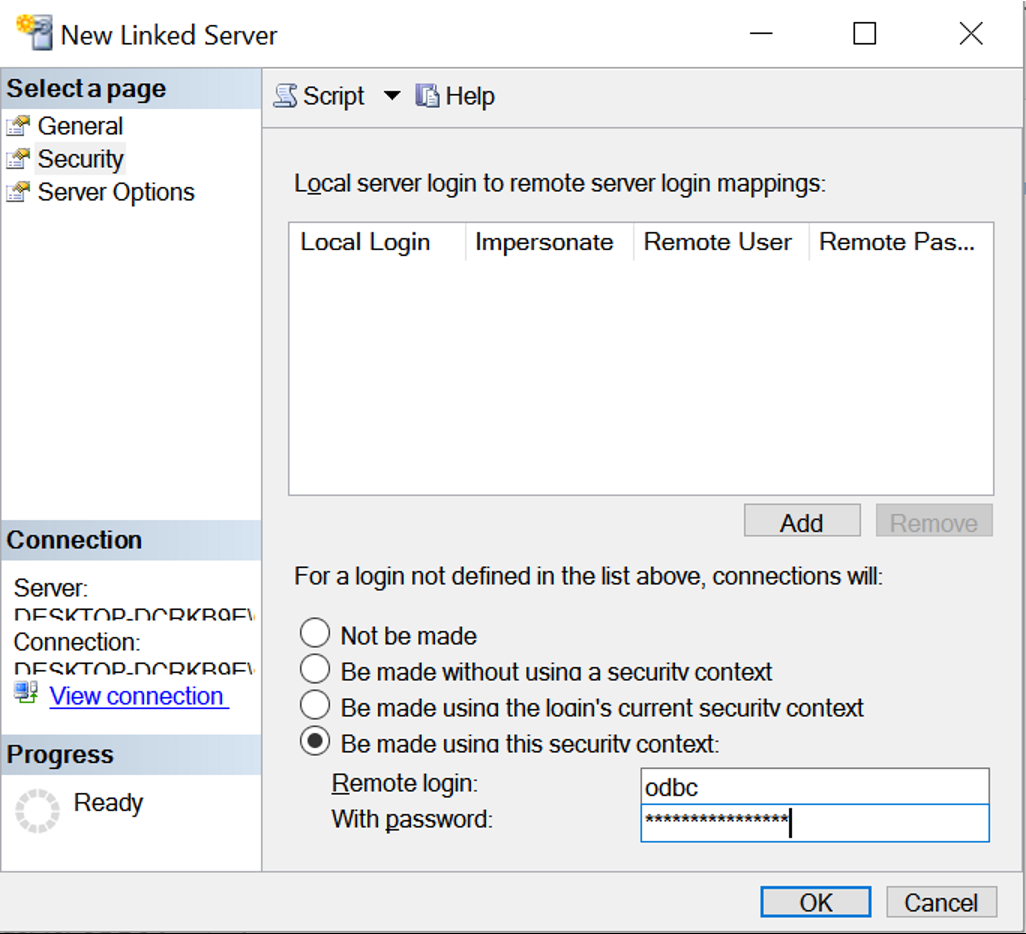
- Click OK
- Set up linked server connections for the PW_PRODUCTION Connection
- Right-click on Linked Servers under Server Objects
- Choose New Linked Server …
- Enter PW_Production as the Linked Server
- Select Microsoft OLE DB Provider for ODBC Driver for the provider
- Enter Presswise-Production (the name of the DSN you created above) in the Datasource
- Click on the Security page.
- Select Be made using this security context to set up the default user and password.
- Enter the MySql user name for the Remote Login
- Enter the provided password
- Click OK
- Confirm that you see the new Linked Servers in the object explorer
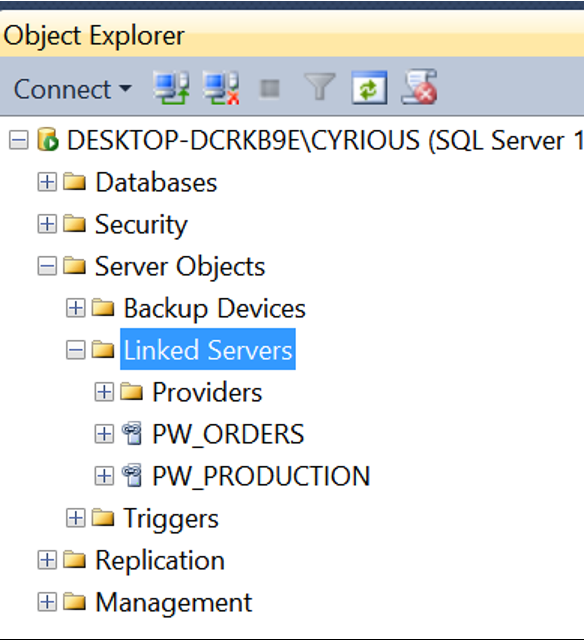
Test Your Connections
- Open a new query windows in SSMS.
- Note: You can not choose a linked server as the default context, so all queries will need to use the four part table name has the format: server_name.[database_name].[schema_name].table_name.
- MySQL does not allow you to specify the database name and schema, so these must be specified in the DSN.
- Test your connections by running these queries
- SELECT * from pw_orders…list_device;
- SELECT top 50 * from pw_production…list_status order by jobid desc;
Troubleshooting
If you are running SQL Server 2008 R2, you will have the following changes to the above procedures:
- Download the ODBC 5.1.13 (https://dev.mysql.com/downloads/connector/odbc/5.1.html).
- Set the Product Name EQUAL to the Data Source name on the General tab for you Linked Server Properties.
- Set RPC and RPC Out to TRUE on the Server Options tab for your Linked Server Properties.
- Convert your enum data to char data.
Source
Contributor: Cyrious Software
Date: 6/2016