{$page}
Orders will sometimes be shipped in one shipment. These steps will help walk you through setting up a single shipment for an order. You can also view training videos outlining this feature on the customer website; log into www.cyrioussoftware.com and click Training on the main menu, then 3. Basic Training on the submenu.
Concept
An Order's shipment information can now be saved on the Shipping Tab, such as the tracking number, date it was shipped, and the items that were shipped in that shipment. In this case, we will walk through an Order that has all of its items being shipped together.
Cautions
No known cautions at this time.
Steps
- Open an Order that has items to be shipped and go to the Shipping Tab.
- Click Edit on the Action toolbar, then choose Ship Everything in One Shipment.
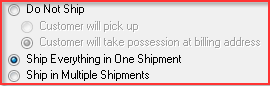
- All quantities from all the line items in the order should be included in the shipment grid.
shipmentgridoneshipment.jpg_aligncenter
- Fill out the Carrier, Service, and other Shipping information to complete the shipment.
carrierinfooneshipment.jpg_aligncenter
- Click Save on the Action toolbar to the right to save the Shipment information.
Source
Contributor: Tisha White, Cyrious Software
Date: 7/18/2011
Version: Control 4.5.1107.2101 and later
See Also
- Backlinks include_pagepage_componentbacklinks