Table of Contents
Overview
Since there were substantial changes made to the internal credit card feature in Control 6.0, users need to complete a series of setup steps to continue (or start) processing credit cards in Control. This article covers how to configure Control to process credit cards through Freedompay.
Requirements
- You must have an account with capital_q (US Customers) or NxGen Canada (Canada Customers) and FreedomPay.
Call or email the appropriate contact at Capital Q or NxGen letting them know you're interested in processing credit cards in Control.
- These credit card changes were introduced in the 6.0 version of Control so verify you are using that version or a newer version before proceeding (Help > About Control > Version).
- The internal credit card processing feature is currently only available to US and CA Control users.
FreedomPay Boarding Process for U.S. Users
Once a Control user has spoken to Capital Q and decides they would like to use the credit card processing feature in Control, the “boarding” process begins and can take up to 7 business days to complete. Here's what the typical process consists of:
- Capital Q creates a new account for the Control user in Elavon's system. Capital Q will get your banking details for the bank in which credit card payments are deposited into and a signed contract between your business and Elavon that discloses processing rates and other important information.
- the Control user's AVS and CVV tolerance levels
- preferred credit card batch settlement time
- logo, header bar RGB color, and background RGB color for the HPP
- FreedomPay finalizes the account setup and provides Capital Q with the your StoreID and TerminalID.
- Capital Q will send you a secure email with your StoreID, TerminalID, and a link to this wiki.
FreedomPay Boarding Process for Canadian Users
Once a Control user has spoken to NxGen and decides they would like to use the credit card processing feature in Control, the “boarding” process begins and can take up to 7 business days to complete. Here's what the typical process consists of:
- NxGen creates a new account for the Control user in Global's system. NxGen will get your banking details for the bank in which credit card payments are deposited into and a signed contract between your business and Global that discloses processing rates and other important information.
- the Control user's AVS and CVV tolerance levels
- preferred credit card batch settlement time
- FreedomPay finalizes the account setup and provides NxGen with your StoreID and TerminalID.
- NxGen will send you a secure email with your StoreID, TerminalID, and a link to this wiki.
Setup
Before you can begin to setup your credit card options, you must have your Terminal ID and Store ID from FreedomPay. If you haven't done this already, please contact Capital Q or NxGen using the contact information provided in #1 of the Requirements section above.
There is only 1 step required to setup Control's credit card processing feature. If you're already using Online Payments, you've already completed this step!
- Enter your Terminal ID and Store ID that was given to you from FreedomPay into Control. To do this, follow the steps below:
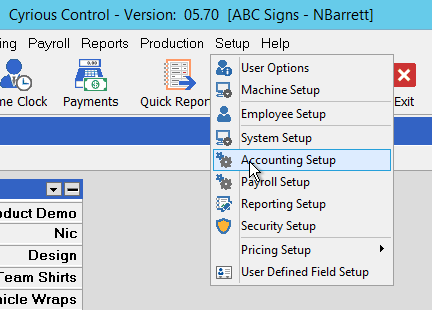
- Open Control and select Setup > Accounting Setup
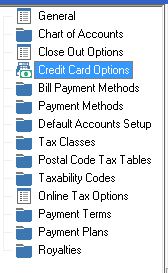
- On the left-hand side, select the Credit Card Options
- You should see a screen similar to the image below.
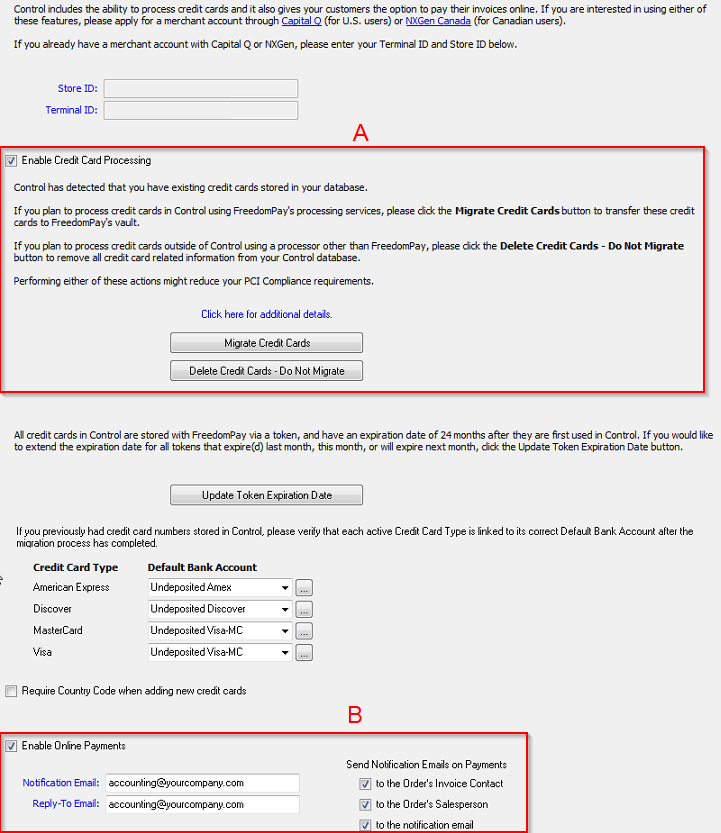
### In Section A:
#### Check the option to Enable Credit Card Processing.
#### Enter your Terminal ID that you'll get from FreedomPay. Required field
#### Enter your Store ID that you'll get from FreedomPay. Required field
### In Section B:
#### This section is only used for Online Payments . You can ignore this section when setting up the internal credit card processing feature.
### Click the Save button to save your changes.
Next Step: Proceed to the understanding_the_credit_card_migration_process wiki
Source
Contributor: Cyrious Software
Date: 10/12/2016
Version: Control 06.0
See Also
- Backlinks include_pagepage_componentbacklinks