Time Tracking Options
There are different methods for tracking an hourly employee's time in Control. Some capabilities supported by the labor time tracking in Control include:
- Tracking employee hours
- Processing payroll
- Comparing actual v. estimated labor hours for an order
- Comparing actual v. estimated labor hours for a station
- Comparing actual v. estimated labor costs for an order
- Comparing actual v. estimated labor costs for a station
- Determining overtime impact on job profitability.
Common Methods/Goals
Which method you should use for time tracking depends on your goals, some of the common goals are:
- Tracking on/off clock status of each employee where you are only concerned if a general status for the employee in a given day. Such as when they arrived, when on break or lunch and when they clocked out for the day.
- Required: Must specify a station during clock in/change status process.
- Tracking which stations an employee worked on during a day, you aren't concerned with an order by order level but you do want to know that the employee spent 2 hrs doing production, 3 hrs doing design, etc. in a given day.
- Required: Must specify a station during clock in/change status process.
- Tracking which orders an employee worked on during a day and for how long.
- Required: Must specify a station and order during clock in/change status process.
- Tracking which orders down to the line item level an employee worked on during a day and for how long.
- Required: Must specify a station, order, and line item during clock in/change status process.
- Tracking which orders down to the line item level and then individual part level an employee worked on during a day and for how long.
- Required: Must specify a station, order, line item, and part during clock in/change status process.
- Attributing actual costs based on the payroll rates of an employee that worked on the job in a given day. i.e. If John makes $15/hr and Ted makes $18/hr and they both work on the job then you are interested in knowing how many hours of straight time, overtime, etc. that each employee worked on the job so you know your actual costs incurred on that job since each employee is paid differently vs. using an overall standard shop rate type of calculation. Note: The advanced job costing and/or payroll module is required to achieve this level of costing information.
- Required: Must specify a station, order, line item, and part during clock in/change status process.
Setup Requirements
Before you begin using any type of time tracking within Control it is recommended to do at least the following:
- Revise the stations list to match your current or revised workflow process.
- There are several checkbox options available on each station to help you refine your list to the appropriate ones you want for each order status, line item level, etc.
- When creating stations be sure that you set the Time clock pay status appropriately. Any time clock pay statuses that are anything but Paid will be excluded from the usage card creation. Any time cards with non-paid stations will not be applied to orders.
- Revise your employee wage rates if using the advanced job costing/payroll module.
=Clocking In / Changing Status of Time Cards=
When you clock in within Control you have the ability to clock in to general stations, orders, line items, and parts. Which level of information you choose will depend on the goals you have as previously mentioned. Employees do not have to clock in and out on a particular order; they can simply ignore the fields and click OK when the time card pop-up screen appears if you do not wish to track that detailed information.
Here's an example of an employee's actions for clocking in and out for a day's work:
- John Jones clocks in for the day. He must select the appropriate station from the list of clock-in stations, and then the below window will appear.
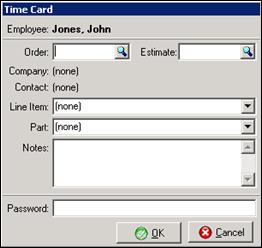
- He can then select a particular order or estimate, and a line item or part to clock in on.
- He decides to go to lunch at 12 PM. To reflect that he's leaving for lunch he should set his status to the Time Off Clock-Lunch station.
- On his return, he sets his status to the appropriate station and can again select a particular order or estimate.
- At the end of the day, John clocks out.
The important thing to remember for job costing purposes is that Control will only attribute the time to the parts where the employee clocked into the station, order, line item, and part. This only happens for those stations that have a time clock pay status = Paid.
Attributing Time Cards to Actual Usage/Costs on Orders
There are two main components involved:
- Time cards are used for tracking employees’ time and we've seen that you can clock in/out and set different statuses.
- In contrast, Labor Usage Cards are used to track labor costs. So after an employee has clocked in/out throughout the day individual time cards have been created, however in order to attribute the times on those cards as actual costs to the order we must create labor usage cards. Before time cards can be processed for payroll or their corresponding costs applied to an order, Labor Usage Cards must be created. Until the labor usage cards are created, the job cost information does not post to the General Ledger.
Fortunately, creating usage cards is a very easy process in Control.
Automatic Creation of Labor Usage Cards
Control has two mechanisms to easily create labor usage cards based on time cards.
Automatic Creation when Order Built
One of the options in Production Setup is to have Control automatically create labor usage cards from time cards when the order is marked Built (or Sale if you prefer). When this option is selected, Control collects all time cards associated with the order and creates usage cards. The labor time and costs are then computed and applied to the order. This provides the basis of the information in the estimated v. actual comparisons reports.
Manually Invoking Labor Usage Card Creation
The automated creation of labor usage cards is convenient, but there may be times when you want to create labor usage cards for all closed time cards. Typically, these are:
- Prior to a monthly closeout. This ensures that costs for all labor completed to date appear in the GL.
- Prior to processing payroll. Since payroll also uses labor usage cards (and not time cards directly), you need to create usage cards for any newly created time cards.
- To see costs not associated with orders. Certain employees may not clock in on a specific job, and so their time cards must be converted to usage cards using the manual process below.
Manually creating labor usage cards from timeclock entries is simple. In the main menu, click on Payroll and choose Create Usage Cards from Timeclock Entries. Answer “Yes” to the confirmation window, select a date range for cards to be created and a window will appear labeled Adjust Labor Usage. All employees and their time for the date range selected will be shown.
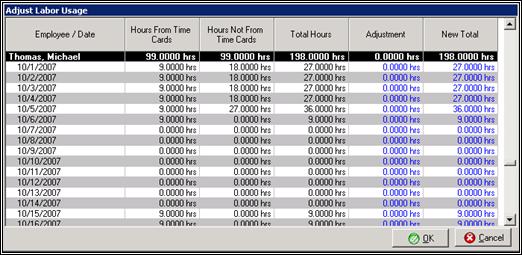
- Employee/Date - Displays the employee name and a list of dates within the selected date range.
- Hours From Time Cards - This column displays the total number of hours the employee has been clocked in during the selected date range.
- Hours Not From Time Cards - This column displays the total number of hours the employee has from labor usage cards.
- Total Hours - This column displays the total number of hours from time cards and labor usage cards.
- Adjustment - This column can be used to make adjustments to time if needed. Negative numbers can be used in this field to bring the total number of hours down, if needed. If adjustments are made, the number in the New Total column will change.
- New Total - This column displays the new total of hours if adjustments have been made. You can also use this column to make adjustments to an employee's hours. If you change this number, the number in the Adjustment column will change.
Note: If you do not see an employee in the list be sure that they have a timecard in the date range you specified. That time card is for an order, line item, and part that includes a station with a Paid time clock pay status.
Manual Entry of Labor Usage Cards
Based on Manual Data
If your employees do not clock in and out using Control, you can use their time tickets and create labor usage cards manually.
- Open the Production - Batch dashboard and go to the Create Part Usage Cards instrument.
- Select the employee for whom you will be entering time for, and fill in the applicable fields.
- When you have entered in all of the pertinent information, click Post.
Based on Clocked In Times
You can also manually enter labor usage cards using clocked in times.
- Open the Create Part Usage Cards instrument and click the Load from Order button. This will bring up a search field where you can select the order you wish to use.
- Once the order is selected, select the parts you will be using and click the Fill Columns button.
- This will create the usage cards for the selected order and part. You will be able to add, clone, delete or clear usage cards.
- Once you have checked them over for accuracy, click Post.
Time Not Attributed To Orders
Employees do not have to clock in and out on a particular order.
- For instance, you may have clerical staff that perform various office duties and are hourly employees.
- These types of employees can simply clock in and out using the applicable stations instead of associating their time with an order.
- When it is time to process a payroll cycle, simply choose the Create Usage Cards from Timeclock Entries function to ensure that these types of employees have their time pulled into the Process Payroll screen.