Table of Contents
Many of the marketing related instruments use the results obtained in the Search Results Instrument and take action on them. This section of the manual describes these instruments.
Report List instrument
This instrument displays all of the reports.

The following operations are supported:
- Print
- Preview / Merge
- Edit (for Word Reports only)
- Email (for Crystal Reports Only)
- Save As … (for Crystal Reports only)
Change Status Instrument
This instrument is used to change the status and station of a group of orders.
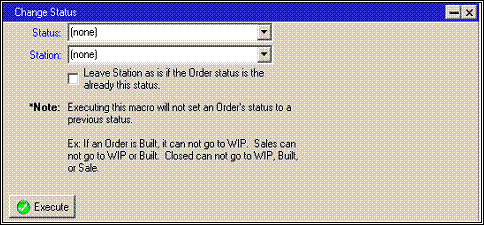
The user can select a new status as well as a new station. A checkbox will determine whether that station is applied to orders that are already in the selected status, or only to orders moved to that status.
Note: This instrument will not adjust the status of an order to a previous status.
Change Station Instrument
This instrument changes orders to a new station.
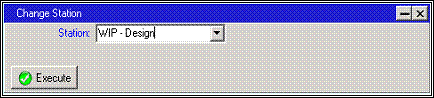
All stations will be preceeded by their corresponding status. Only orders in this status will be reassigned. Orders not in the selected status will be ignored.
Change UDF Instrument
This instrument allows a user to set or change the UDF values for the selected results.
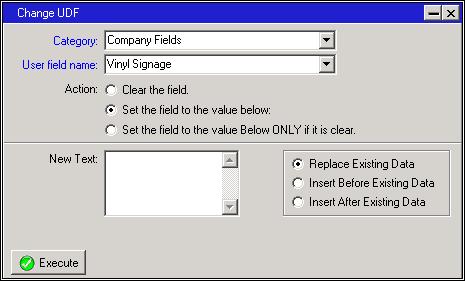
First, select the category of UDFs you want to change. The options will vary based on the type of search being performed.
- For Order or Estimate Searches, you can change the Transaction UDFs, Customer UDFs, and Contact UDFs.
- For Customer Searches, you can only change the Customer UDFs.
- For Contact Searches, you can change the Contact and Customer UDFs.
Choose the new value you wish to set the UDF to. The choices you have will vary based on the type of UDF selected (text, checkbox, etc.).
Create Contact Activity Instrument
This instrument is used to create Contact Activities for the selected results.
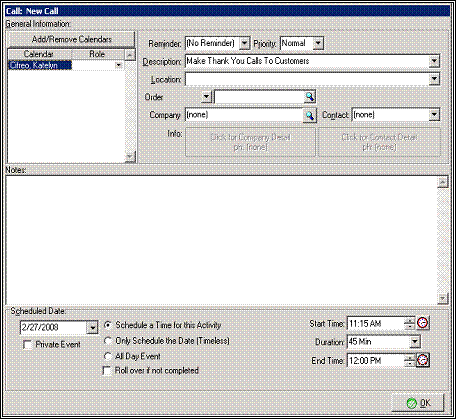
This window allows the user to set all the information for the activity. The user is able to set a reminder, priority, description, etc. At the bottom of the window, the user is able to schedule a time and date for the activity, as well as set a start time, duration, and end time. After all information is entered, click “OK” to close the window.
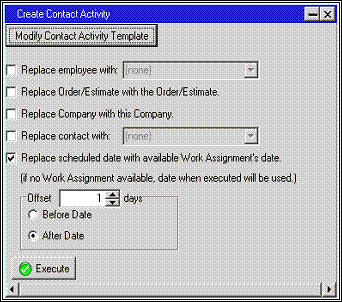
- Replace employee with: [ drop-down menu ]. If this option is selected, the employee who is currently assigned the activity will be replaced with the one selected.
- Replace Order/Estimate with the Order/Estimate selected. If this option is selected, the current order/estimate that the activity is assigned to will be replaced by the order/estimate that is selected in the search results window.
- Replace Company with the Company selected. If this option is selected, the current company that the activity is assigned to will be replaced by the company that is selected in the search results window.
- Replace contact with: [ drop-down menu ]. If this option is selected, the current contact for the activity will be replaced with what is selected from the drop-down menu.
- Replace scheduled date with available Work Assignment's date. (If no Work Assignment available, date when executed will be used.). This option allows the user to replace the currently assigned date with a new date.
Offset [ scroll menu ] days
- Before Date. If this option is selected, the scheduled date will be offset the selected number of days BEFORE the previously scheduled date.
- After Date. If this option is selected, the scheduled date will be offset the selected number of days AFTER the previously scheduled date.
Send Email Instrument
This instrument is used to send emails to the companies/contacts identified by the results.

Replace To: Field with the email address of: [ drop-down menu ]. If this option is selected, you can select the employee or company contact to send email to based on the search results selected, such as all estimates created today.
Replace contact with: [ drop-down menu ] If this option is selected, you can select the contact type to send email to, such as the Order Contact.
Order You can select the type of transaction, such as an order, service ticket, etc. using the drop down arrow. The corresponding number of the selected transaction type can then be entered into the field, or selected using an explorer. If you select an order using the explorer, the Company, Contact, and To: fields will auto-fill based on your selection.
Company You can begin entering a company name in this field, and then select it from a drop-down list.
Contact You can begin entering a contact name in this field, and then select it from a drop-down list.
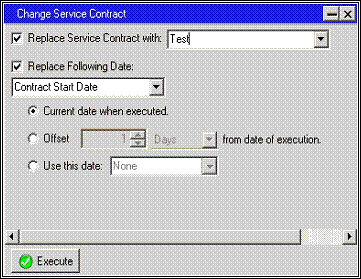
Change Service Contract Instrument
This instrument is used to set the service contract dates in the Company record.