 | Main Menu | Setup | User-Defined Field Setup |
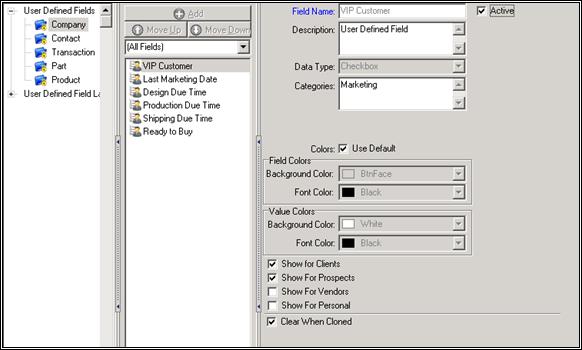
* Field Name: Enter in a name for the User-Defined Field.
* Active: If this box is checked, the User-Defined Field is active.
* Description: Enter in a description for the User-Defined field.
||  || Be descriptive! It may help you out later. ||
- Data Type: Designate the type of data the User must input. E.g., a Date of Order field would need Date selected in this field.
- Categories: Designate the categories to which the User-Defined Field pertains.
- Colors: Allows you to select some colors for the User-Defined Field.
- Background Color Field Value: Pick a background color for the field value.
- Font Color Field Value: Pick a font color for the field value.
- Background Color Value Color: Pick a background color for the value color.
- Font Color Value Color: Pick a font color for the value color.
- Default Formula: Enter the default value CFL formula for the UDF.
- Show for Clients: Check this box if you want the User-Defined Field to appear in clients' records.
- Show for Prospects: Check this box if you want the User-Defined Field to appear in prospects' records.
- Answer Required: Check this box if an answer is required for this User-Defined Field.
- Reset when Cloned: If this box is checked, when you clone a company record, whatever you entered into the original company's field for this User-Defined Field will be reset to the default value.
- Reset when Estimate Converted to Order: If this box is checked, when you convert an estimate to an order the UDF value will be reset to the default value.
- Entry Type: Denote whether you want an entry box or drop-down menu.
- Dropdown Values: Designate what you want your dropdown values to be.
- Limit to List: If this box is checked, the User will only be able to pick from this list, and will not be able to enter in anything else.
- Allow Multiple Selections: Check this box to allow multiple answers to the User-Defined Field.
Special Actions Toolbar Functions
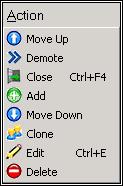
- Move Up: Move a User Defined Field up one space.
- Demote: Demotes the selected item in the list.
- Close: Closes an unedited screen.
- Add: Add a new User Defined Field.
- Move Down: Move a User Defined Field down one space.
- Clone: Copies a pre-existing order, estimate, or product to a new record.
- Edit: Enters a mode that allows previously saved information to be changed.
- Delete: Removes an estimate or product from the database.