Accounting Changes for Kanban Warehouses
Accounting with Kanban Warehouses
- When inventory is released to the production floor, any accrued value of the inventory is transferred to the Kanban Inventory asset account.
- The Kanban Inventory account shows the balance of all non-consumed inventory in Production warehouse inventory at any time. The standard GL Inventory accounts show the remaining balance of all inventory not released to production.
Transfers of materials between different warehouses have been a feature of Cyrious Control since version 4.0. In most respects, Production warehouses act like any other warehouse. In one key area, however, the accounting of inventory in Production warehouse differs from other stockroom warehouses.
On the balance sheet, all inventory in Production warehouses are tracked in a separate system inventory account called (by default) Production warehouse inventory. When inventory is moved into a Production warehouse, the value of that inventory is automatically transferred from the corresponding inventory asset account into the Production warehouse inventory asset account
In the following example, assume 2 rolls of material are released to the Production warehouse. Each roll has a cost of $325 in inventory. The corresponding entry in Control would look like this:
| ~ Account | ~ Warehouse | ~ Qty Billed | ~ Debit | ~ Credit | |||||
| Paper Inventory | Main | - 2 rolls | $ 650.00 | ||||||
| Production warehouse inventory | Production Floor | + 2 rolls | $ 650.00 |
Warehouse Usage Guidelines
The guidelines for Stockrooms, Kanban warehouses, Warehouse Groups, and Standard warehouses are:
| Topic | Stockroom Rule | Kanban Rule | Warehouse Group Rule | Standard Warehouse Rule | |||||
| Module Requirements | Inventory, ProFITS | Inventory, ProFITS | Inventory, ProFITS | Inventory | |||||
| Reserving Inventory (Orders) | Not Allowed. Orders may not use a stockroom as their production warehouse. | Allowed. | Allowed. Uses Default Production Warehouse. | Allowed. | |||||
| Ordering Inventoried Part (Bills, POs) | Allowed | Not Allowed. Bills and POs may not use a Kanban warehouse as the receiving warehouse. | Allowed. Uses Default Stockroom Warehouse. | Allowed. | |||||
| Ordering Non-Inventoried Item (Bills, POs) | Not Allowed. All Non-Inventory items are associated with a reservation from an order. | Allowed if matches order’s the warehouse. | Allowed if the default production warehouse matches the order’s warehouse. | Allowed if matches the order’s warehouse. | |||||
| Receiving Items (RDs) | Allowed for Inventoried Parts. | Allowed for non-Inventoried Item on an order if it matches the order’s warehouse | Allowed for non-Inventoried Item on an order if it matches the order’s warehouse | Allowed. | |||||
| Recommended Stocking Levels | Supported | Supported, often zero | Not supported | Supported. | |||||
| Inventory Quantities Tracked | Billed Not Billed On-Hand On-Order Expected | Billed Not Billed On-Hand Reserved Available On-Order Expected | Sum(Billed) Sum(Not Billed) Sum(On-Hand) Sum(Reserved) Sum(Available) Sum(On-Order) Sum(Expected) | Billed Not Billed On-Hand Reserved Available On-Order Expected |
|||||
| Accounting for Inventory on the Balance Sheet | The value of each inventory item is tracked in the GL Account associated with the part. | The value of all inventory items is combined into a single GL Account “Kanban Warehouse”. | Not applicable. | The value of each inventory item is tracked in the GL Account associated with the part. | |||||
| Accounting for in-process inventory on the Balance Sheet (no change) | The value of consumed materials is tracked in a single GL Account “Cost of WIP & Built” while the order is being produced. | The value of consumed materials is tracked in a single GL Account “Cost of WIP & Built” while the order is being produced. | Not applicable. | The value of consumed materials is tracked in a single GL Account “Cost of WIP & Built” while the order is being produced. | |||||
| Expensing Inventory on the Income Statement (no change) | The expense account associated with the part is used for inventory expensing. | The expense account associated with the part is used for inventory expensing. | Not applicable. | The expense account associated with the part is used for inventory expensing. |
Warehouse Inventory
For any given inventory item, the following inventory counts are tracked:
| Level | Description | Standard Warehouse | WarehouseGroup | Stockroom | KanbanWarehouse | ||||||
| Billed | Inventory that is in inventory and accounted for in the general ledger. | ? | ?* | ? | ? | ||||||
| Received | Inventory that has been received but is not billed and whose value is not included in the general ledger. | ? | ?* | ? | |||||||
| On-Hand | On Hand Billed + Received This represents the count of what is physically present. | ? | ?* | ? | |||||||
| Reserved | Inventory that is reserved for pending orders. | ? | ?* | ? | |||||||
| Available | Available On-Hand – Reserved Inventory that is available for future orders. | ? | ?* | ? | |||||||
| On-Order | Inventory that has been ordered on a Purchase Order. | ? | ?* | ? | ? | ||||||
| Expected | Expected Available + On-Order The quantity of inventory that is expected when all pending orders are received. | ? | ?* | ? | ? |
Inventory Levels with Warehouse Groups
- Inventory can be ordered (via POs and Bill) for a stockroom warehouse or a warehouse group.
- If the warehouse group is used in a PO or Bill, the group’s default stockroom warehouse is used as the recipient.
Reserved and On Order Inventory Quantities
- An order in WIP is reserved order against the production warehouse.
- Since the Warehouse Group is the combination of the stockroom and production warehouses, it will show a net increase in the reserved quantity and a net decrease in the available quantity.
- New tools are available for transferring materials between the stockroom and production warehouses. (Materials moved into a warehouse group are transferred into the default stockroom for that warehouse.)
Production Setup
The warehouse setup screen is located under the file menu under Production | Production Setup along with the following items:
- General Options
- Stations (formerly in General Setup)
- Divisions (also in Accounting Setup)
- Warehouses (formerly on Pricing Setup) Requires Inventory Module
- Part Setup (also in Pricing Setup) Required Parts Module
- Adjust Part Information (also in Pricing Setup) Requires Parts Module
- Timeclock Options (formerly in General Setup)
- Part Usage Creation (formerly in General Setup)
When the applicable modules are not enabled, their corresponding setup is not displayed.
Production General Options Screen
The set-up screen for general production options is located under the Production | Production Setup menu.
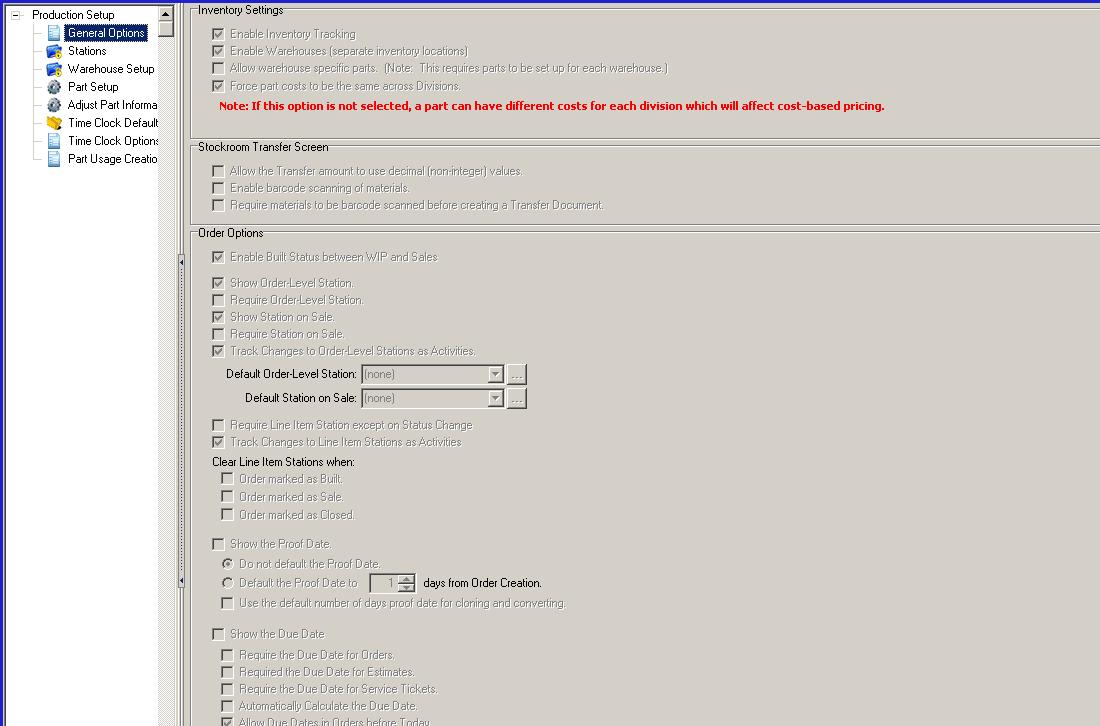
General options found on the setup screen include:
Warehouse Setup (only if Inventory module present)
[ x ] Enabled Warehouses
[ x ] Enabled Warehouses to have different part lists. (Caution – increases the setup!)
Stockroom Transfer Screen (only if Inventory and ProFITS module present)
[ x ] Allow the Transfer amount to use decimal (non-integer) values
[ x ] Enable barcode scanning of materials
[ x ] Require materials to be barcode scanned before creating Transfer Documents
Order Options
[ x ] Enable Built Status between WIP and Sale
[ x ] Show Order-Level Stations
[ x ] Require Order-Level Stations
[ x ] Track Changes to Order-Level Stations as activities
Default Order-Level Station : [ (none) \/ ]
[ x ] Require Line Item Station
[ x ] Track changes to Line Items as Activities
[ x ] Show the Proof Date
( ) Do not default the Proof Date
( x ) Default Proof Date to [ 1 ] Days from order create
( ) Default Proof Date to number of days for new order
[ x ] Show the Due Date
[ x ] Require Due Date for Orders
[ x ] Require Due Date for Estimates
[ x ] Require Due Date for Service Tickets
[ x ] Automatically Calculate Due Date
[ x ] Allow Due Dates in Orders before Today
Warn the user when:
( ) The due date is before the proof date.
( ) The proof date is before the due date.
( ) Neither.
Warehouse Setup Screen
The warehouse setup screen is located under the Production | Production Setup menu option.
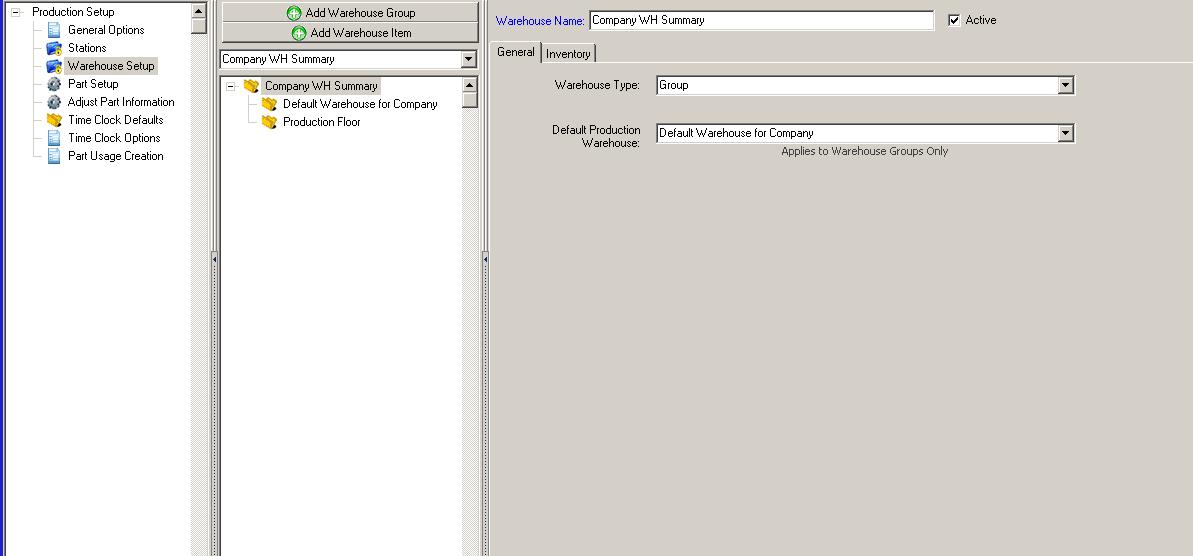
Warehouse setup requires the following information, some of which is only applicable to certain warehouse types.
| Field | Description | Enabled When | |||
| Warehouse Name | The name of the warehouse. All warehouse names must be unique. | ||||
| Is Active | Indicates whether this warehouse is currently active. Inactive warehouses will not show up in lists the user selects from. | ||||
| Warehouse Type | This type of warehouse. Valid choices are Standard, Kanban, Stockroom, or Group. Top Level Division Warehouses are always Group. If ProFITS is not enabled, only Standard warehouses are allowed for other warehouses. | Only enabled if ProFITS module is enabled. | |||
| Warehouse Group | The group this warehouse is contained within. Warehouse may only be reconfigured within their existing division. The top level warehouse group corresponding to the | Only enabled if ProFITS module enabled. | |||
| GL Account | For Kanban Inventories only, this option selects the GL Asset Account that is used for accruing the inventory value. For all other types, this option is disabled and should show nothing. The selection list is limited to Asset Accounts. | Only enabled if ProFITS module enabled and Warehouse Type is Kanban | |||
| Default Production Floor Warehouse | For warehouse groups, the default production floor warehouse is Kanban or Standard sub-warehouse that is used by default when orders specify the warehouse group as the production location. Parts are reserved against the Production Floor Warehouse. | Only enabled for Warehouse Groups | |||
| Include New Parts By Default | The default case for warehouses can be set up to include all new parts or to not include new parts. |