{$page}
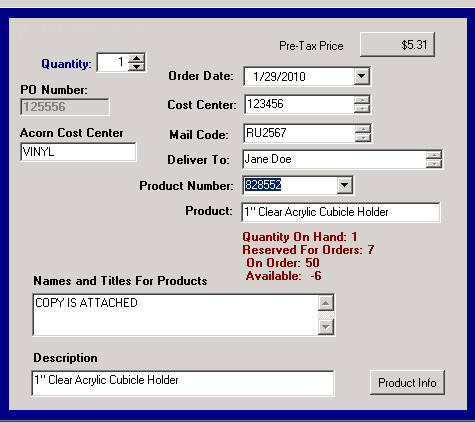
Describes how to display inventory levels on the pricing form so users can see what is available, reserved for orders, and on order. Assumes that the Cyrious Inventory Tracking capability has been enabled, that there are parts entered properly, and that the Selection List is correctly linked to the parts to be used.
Concept
We want the user to see as she is completing the Estimate or Work Order the inventory status of the part she is ordering. The report is based on Cyrious' Inventory Tracking. We start with an initial count of the parts on hand. These have a corresponding Part entry in Cyrious. Each part is linked to a line item selection is a list. When that item is selected, Cyrious decrements the On Hand Inventory category and adds the ordered amount to the “Reserved For Orders” category. When a Purchase Order for the part is created in Cyrious, using the ordered Part, Cyrious adds the PO quantity to the “On Order” category. All these amounts are accessible with CFL using a Part-Properties function call such as PartByVariableName(“Acrylic Holders”) combined with the category desired such as PartQuantityOnOrder. These Properties are accessible through the Formula Builder.
Cautions
The information presented by this process is subject to some of the limitations of the Cyrious inventory tracking system which is excellent but not foolproof. Users should be aware that for really critical deliveries, a personal follow up to validate the information would be a good idea.
Steps
Step 1: In Edit mode for the Pricing Form on which you are presenting the information select a Designer Label Object and place it on the form where you want to display the information. Be sure that there is enough space for 4 lines of text.
Step 2. In the Properties tab to the left of the Pricing Form, select the drop down list of the Property called “Display Info” and select Formula.
Step 3. Next, select the Property “Display Formula” and open the CFL Formula Builder. Enter the code to present your inventory information. To retrieve information using the PartByVariableName function, the variable entered would be the one containing the list which is linked to the part. Note (1) the use of the ISASSIGNED() function to prevent error messages if no parts are assigned to the line item, (2) that this formula requires that all information to be presented is converted to a string (text) format, and (3) the use of quotation marks to force a carriage return by splitting the “quoted” line between two lines. Below is a sample of code used in the Pricing Form shown in the screen shot below:
IF ISASSIGNED(PartByVariableName( “SuntrustProductNumber”)) THEN
"Quantity On Hand: " +
TOSTRING( PartByVariableName( "SuntrustProductNumber").Part.QuantityOnHand )
+ IF PartByVariableName( “SuntrustProductNumber”).Part.QuantityReserved >0 Then “
Reserved For Orders: ” + TOSTRING( PartByVariableName( “SuntrustProductNumber”).Part.QuantityReserved )
Else "" ENDIF
+ IF PartByVariableName( “SuntrustProductNumber”).Part.QuantityOnOrder >0 THEN “
On Order: ” + TOSTRING( PartByVariableName( “SuntrustProductNumber”).Part.QuantityOnOrder )
Else "" ENDIF
+ IF PartByVariableName( “SuntrustProductNumber”).Part.QuantityAvailable 0 THEN “
Available: ” + TOSTRING( PartByVariableName( “SuntrustProductNumber”).Part.QuantityAvailable)
Else "" ENDIF
ELSE “” ENDIF
The result of this formula is shown in the screen shot below:
Source
Contributor: Steve Gillispie, Acorn Sign Graphics
Date: 01/30/2010
Version: Control 4.3
See Also
- Backlinks include_pagepage_componentbacklinks