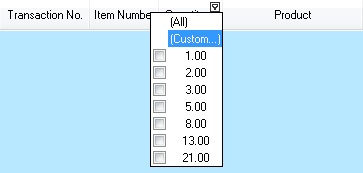
A new Custom Filter option was added in Control version 5.1. This allows for the setup of custom filtering on different columns in the Explorers. To set a custom filter on a column, run the mouse cursor over the column's header, then click the small down arrow that appears in the header's upper-right corner. A drop-down menu will appear containing a selection of values that have been detected in the value, as well as the word 'Custom'. To define your own custom filter, click 'Custom'.
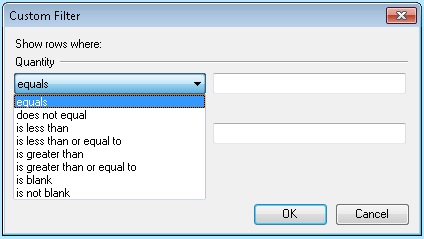
This will cause the Custom Filter window to appear. In the Custom Filter window, select the criteria that you want to apply to a value, as well as the value itself. For example, if you are looking for orders with a Base Price lower than $20.00, you would choose the criteria 'is less than' and the value would be '20'. Notice that you are also able to select a second criteria and value using either the AND operator or the OR operator. This allows for more complex filters like “is less than 50 AND greater than 20”.