Overview
The information below can be used to set up a new user in Control after purchasing a new user license. The following assumes that Control is already installed with existing users already in the system.
Validating New User License
There are two ways to validate the new license:
In Control
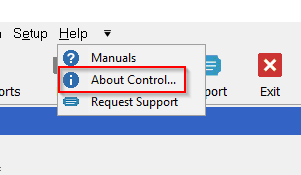
- With Control open, click the Help on the main toolbar.
- Select About Control. (example)
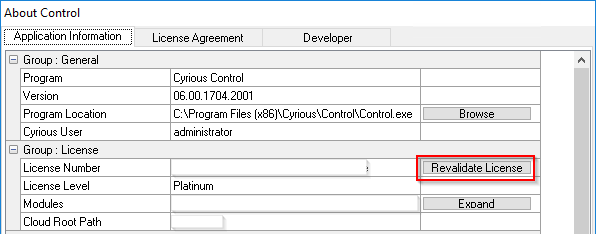
- Click the Revalidate License button on the right side. (example)
- After a few seconds, you should see a message that says License Revalidated.
- Click OK.
- Close Control and log back in for the change to take effect.
- Your license has been validated and is now able to be used on your system.
On the Server
If you're not logged into Control, or access to the server is easier, please use these steps:
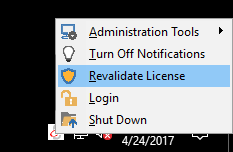
- Right click the SSLIP icon in the System Tray.
- Click Revalidate License. (example)
- Your license has been validated and is now able to be used on your system.
Set Up the New User in Control
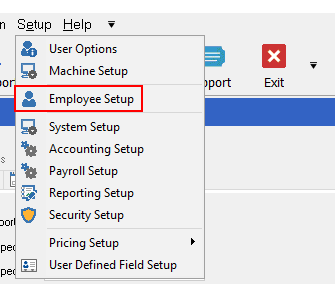
- In Control, click the Setup menu at the top.
- Select Employee Setup. (example)
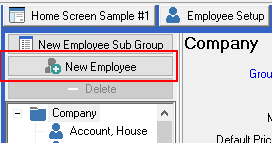
- Click New Employee on the left side. (example)
- Enter the First and Last names.
- Click Save on the right side toolbar.
- Click Yes on the Time Clock confirmation screen.
- Enter the password you used to log into Control with.
- Type a new password (password must be 7 characters).
- Type the same password to confirm.
- Click OK.
- The new user has been created.
**Notes:**
The information in the Employee record created for this user can be changed at any time.
These are basic steps to quickly create a new user. There are several more options to be considered later (security group, employee info, etc.)
Download the Cyrious Launcher
- Launch any browser on the client PC.
- Download the Cyrious Launcher by clicking this link.
- Locate the downloaded file and double click to run it.
- Follow the prompts to install any needed fonts, etc.
- Control should launch to the login screen.
**Notes:**
* If you have any trouble with this step, please see the information located in this [[http://control.cyriouswiki.com/Cyrious+Application+Launcher|wiki]].
* To use Control from a Mac computer, please see the information in this [[http://control.cyriouswiki.com/Using+Control+on+a+Mac|wiki]].
You could leave a comment if you were logged in.